
Remote Login / AnyDesk
[ad_1]
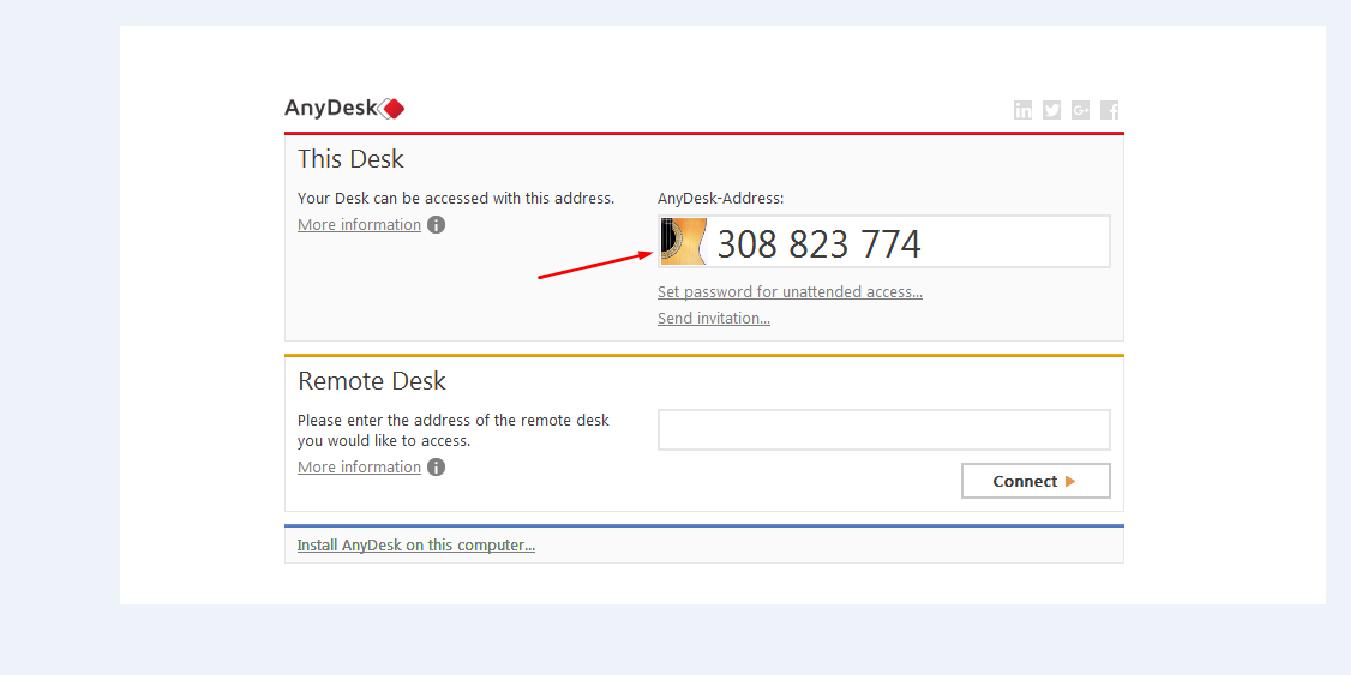
AnyDesk is remote desktop software that is user-friendly. This software will allow the HostingSewa Team to provide support by logging into your system remotely.Step 1: Download AnyDesk Online.Step 1.1: You can download the Anydesk software in the below mentioned link.Step 2: Run the application to setup Anydesk.Step 3: Run the Program. After the Any desk is completely installed, to Run the program by double-clicking on the icon. And you can open Anydesk as shown in the picture and your Anydesk is ready to connect now you can share your Anydesk address to connect your machine remotely. Following the above steps, you can download Anydesk. (with respect to the above image the Anydesk ID will be 308 823 774) How to connect to Anydesk ID: AnyDesk provides various options to establish sessions. A remote client can be requested by entering the AnyDesk ID or Alias, displayed in the ID label of the Main Window of the remote client. Clients to request sessions with are also available from the Speed Dial or Address Book. A request must be manually accepted on the remote side to start. Follow the steps to connect using AnyDesk: Step 1: Remote User should provide ID or Alias shown in This Desk. The Example shows(as shown in the figure your Anydesk ID will be 308 823 774 )
Step 2: Now you need to enter the ID/Alias to the Remote Desk input label on your device and click on connect.
Step 3: Next you need to Accept Window which prompts to the Remote User. By accepting the request, the session is established.
Following the above steps, you can connect to another remote desktop using Anydesk.
Features of Anydesk:
>> High Frame Rate & Real-Time Collaboration
>> Low latency - its latency lies below 16 milliseconds
>> Efficient Bandwidth use: even with low bandwidth as 100kB/sec the task is smooth
>>Easily access licenses, settings, session logs. Export options and automated invoicing options.
>> Encryption Technology: keep you protected from unauthorized access
>> Access Restrictions: Whitelisting trusted desks to allow only authorized to request connection
>>Verified Connections:e RSA 2048 asymmetric key exchange encryption is used for verified connection
>> Allows good Flexibility which you to work from anywhere
>> supports Multi-Platform Support and is has maximum compatibility
>> easy to do download and install
>>You can easily transfer files between computers by using transfer tab or by using copy and paste,
>> can manage contacts and connections using the built-in address book
>>PowerUser tariff option you can connect to many sessions /desktops/ webinar hosts or share your screen with multiple attendees
[ad_2]
AnyDesk is remote desktop software that is user-friendly. This software will allow the HostingSewa Team to provide support by logging into your system remotely.Step 1: Download AnyDesk Online.Step 1.1: You can download the Anydesk software in the below mentioned link.Step 2: Run the application to setup Anydesk.Step 3: Run the Program. After the Any desk is completely installed, to Run the program by double-clicking on the icon. And you can open Anydesk as shown in the picture and your Anydesk is ready to connect now you can share your Anydesk address to connect your machine remotely. Following the above steps, you can download Anydesk. (with respect to the above image the Anydesk ID will be 308 823 774) How to connect to Anydesk ID: AnyDesk provides various options to establish sessions. A remote client can be requested by entering the AnyDesk ID or Alias, displayed in the ID label of the Main Window of the remote client. Clients to request sessions with are also available from the Speed Dial or Address Book. A request must be manually accepted on the remote side to start. Follow the steps to connect using AnyDesk: Step 1: Remote User should provide ID or Alias shown in This Desk. The Example shows(as shown in the figure your Anydesk ID will be 308 823 774 )
Step 2: Now you need to enter the ID/Alias to the Remote Desk input label on your device and click on connect.
Step 3: Next you need to Accept Window which prompts to the Remote User. By accepting the request, the session is established.
Following the above steps, you can connect to another remote desktop using Anydesk.
Features of Anydesk:
>> High Frame Rate & Real-Time Collaboration
>> Low latency - its latency lies below 16 milliseconds
>> Efficient Bandwidth use: even with low bandwidth as 100kB/sec the task is smooth
>>Easily access licenses, settings, session logs. Export options and automated invoicing options.
>> Encryption Technology: keep you protected from unauthorized access
>> Access Restrictions: Whitelisting trusted desks to allow only authorized to request connection
>>Verified Connections:e RSA 2048 asymmetric key exchange encryption is used for verified connection
>> Allows good Flexibility which you to work from anywhere
>> supports Multi-Platform Support and is has maximum compatibility
>> easy to do download and install
>>You can easily transfer files between computers by using transfer tab or by using copy and paste,
>> can manage contacts and connections using the built-in address book
>>PowerUser tariff option you can connect to many sessions /desktops/ webinar hosts or share your screen with multiple attendees
[ad_2]
Advertisement