
How to Use HostingSewa Site Builder
[ad_1]
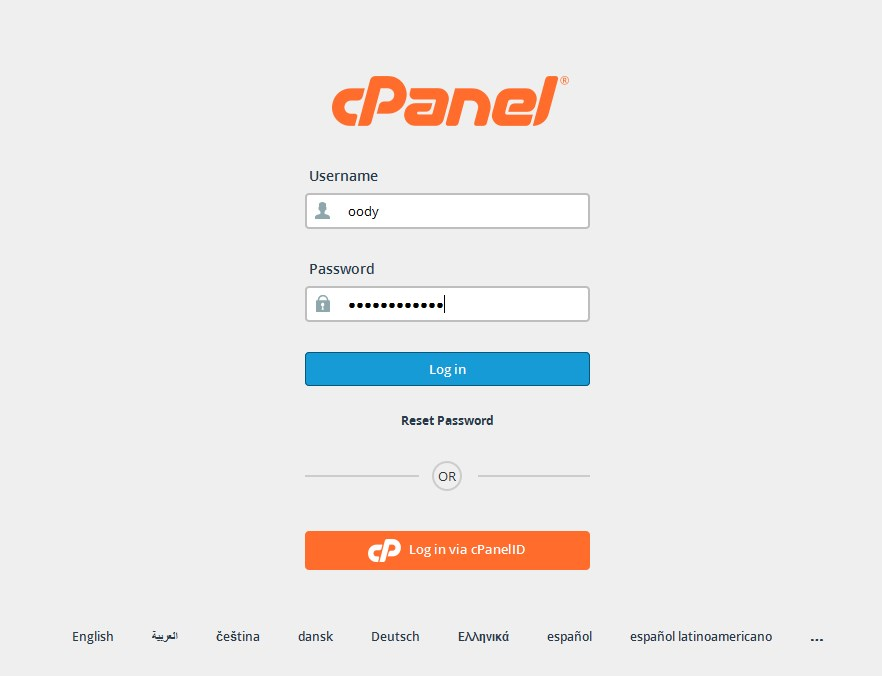
Want to build Your personal or business website on your own, but feel like don't have enough Web Development knowledge?You didn't need to. With this Website Builder integrated module, you can just drag and drop graphical elements and edit texts and pages with a few clicks. If you have already bought the domain name you can login to cpanel or you can do domain purchase from HostingSewa.How to use SitePad with our HostingSewa services Step: 1 Login to Cpanel Visit the the following URL to get to your cPanel login: example.com/cpanel Note! Replace the term example.com with your actual domain name. Type in your cPanel username and password. Your cPanel Username can be found in your registered email id once signed up with HostingSewa service.
Step: 2
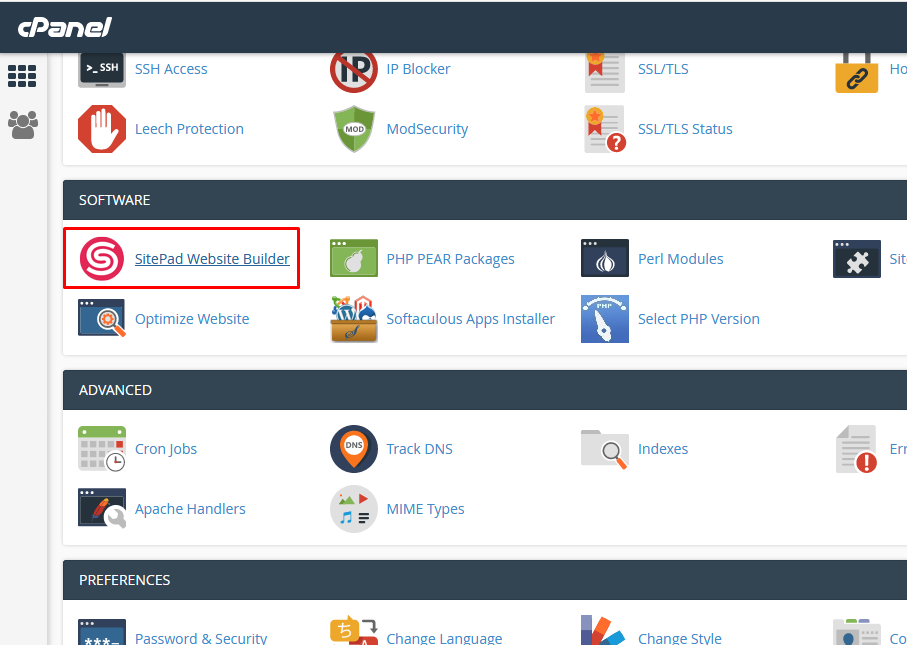
Scroll down to "Software" section, and click on "SitePad" icon.You will be redirected to SitePad's main menu. First You need to choose a Theme to modify and customize:
 Step: 3
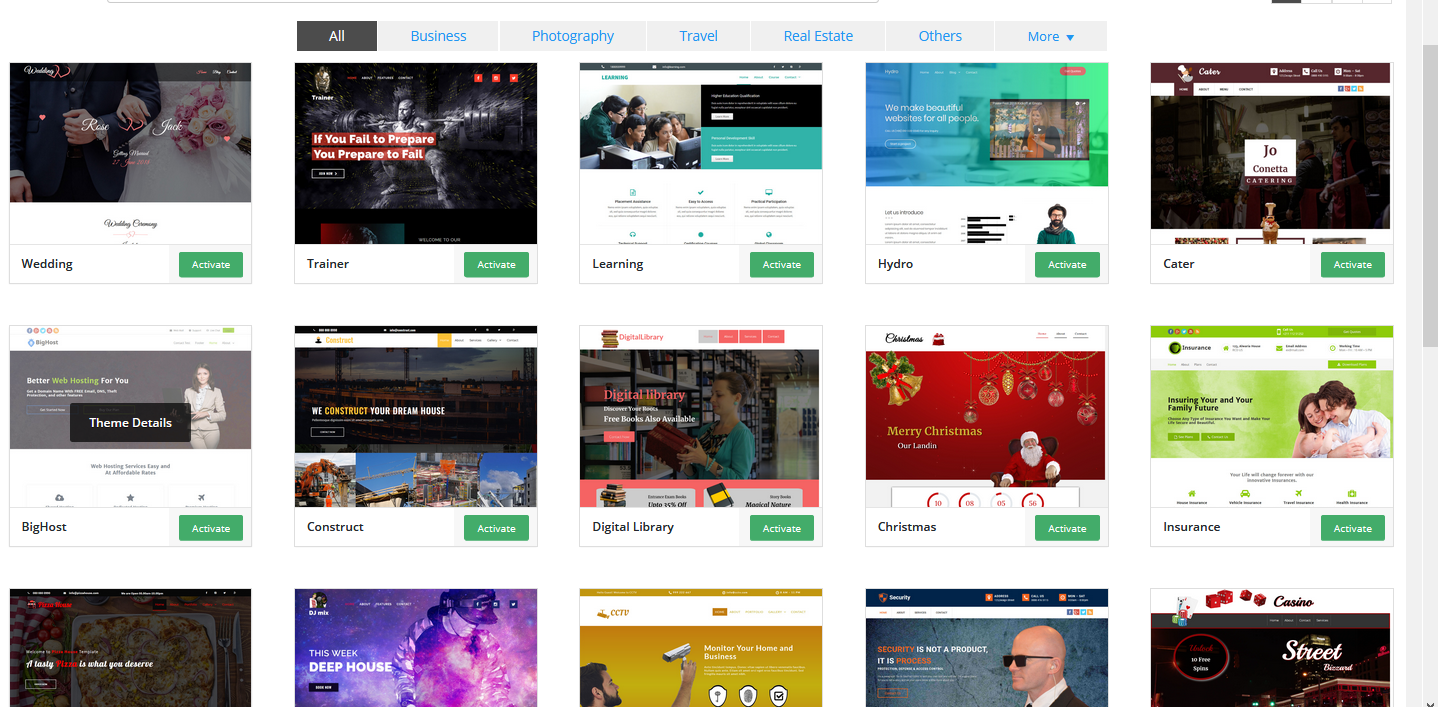
Choose a Theme from our library
Please click on Activate button next to the theme
to activate the theme you like. The themes can be changed without loss of already existing content. To change it, just navigate to the new theme, and click "Activate" button. If you have more than one website hosted on the same account, you can select which one to edit, from "Sites" section:
Step: 3
Choose a Theme from our library
Please click on Activate button next to the theme
to activate the theme you like. The themes can be changed without loss of already existing content. To change it, just navigate to the new theme, and click "Activate" button. If you have more than one website hosted on the same account, you can select which one to edit, from "Sites" section:
 Step: 4
Once you have chosen and activated a theme,
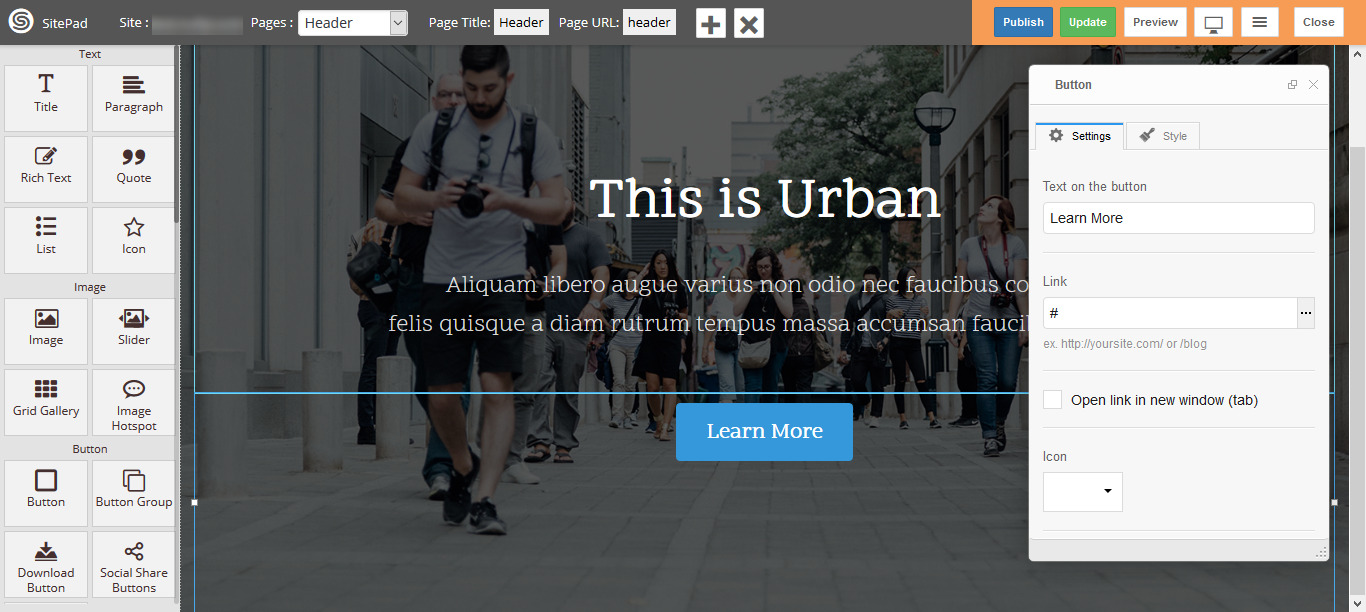
To edit a page content, navigate to "Pages" section and select the page You want to edit:
Step: 4
Once you have chosen and activated a theme,
To edit a page content, navigate to "Pages" section and select the page You want to edit:
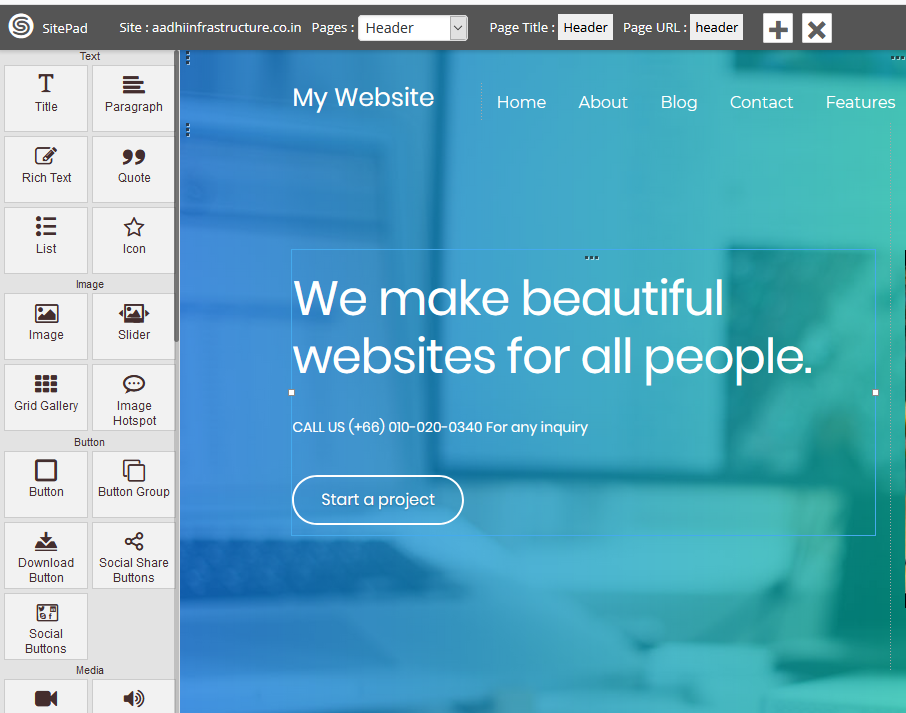
 Step: 5
 Step: 6
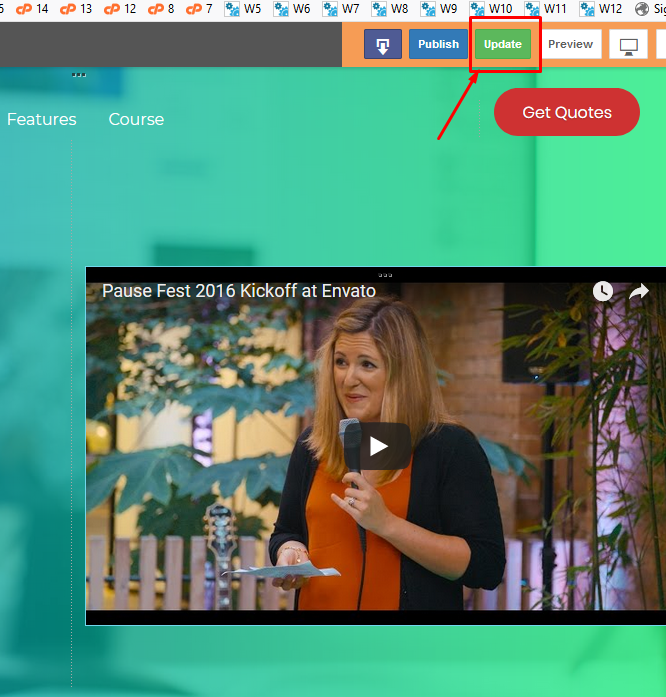
Once you finish Editing your Website,
always save your site
by clicking on the Update button above
So that you do not lose any content
Step: 6
Once you finish Editing your Website,
always save your site
by clicking on the Update button above
So that you do not lose any content
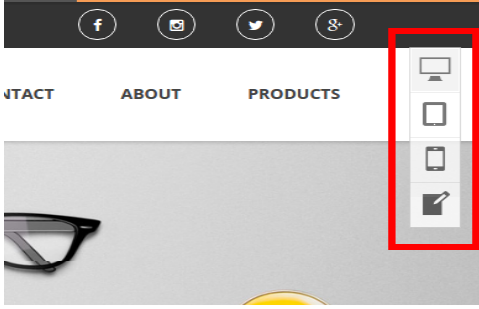
 To check compatibility with mobile devices like Tablet or Smartphone, use the "View Switch" menu, which appears on the right side of the interface:
 Step: 7
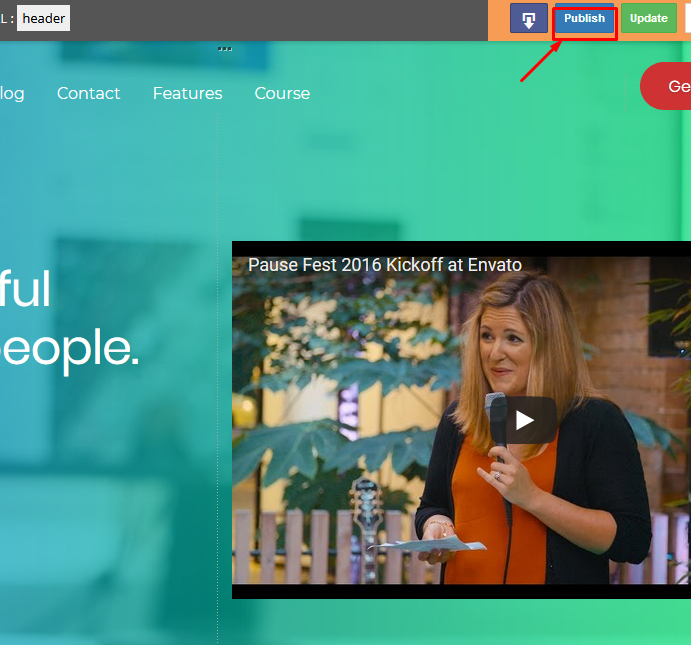
Now let's Publish your site
Click on the Publish button above
to publish the site to your domain.
Step: 7
Now let's Publish your site
Click on the Publish button above
to publish the site to your domain.
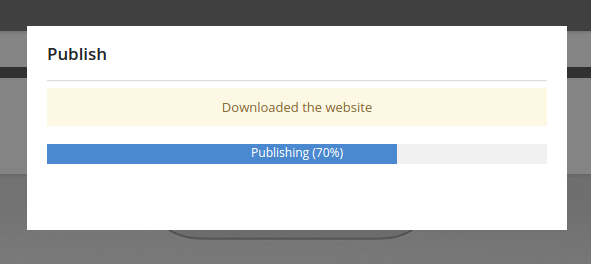
 after a few seconds your site will be uploaded and published to the web:
That's it your site is ready!
after a few seconds your site will be uploaded and published to the web:
That's it your site is ready!
 If you need any assistance in this regard, you can contact us at http://www.hostingsewa.com/support/Read Further More about how to use Site Builder Please CLICK HERE.
[ad_2]
Want to build Your personal or business website on your own, but feel like don't have enough Web Development knowledge?You didn't need to. With this Website Builder integrated module, you can just drag and drop graphical elements and edit texts and pages with a few clicks. If you have already bought the domain name you can login to cpanel or you can do domain purchase from HostingSewa.How to use SitePad with our HostingSewa services Step: 1 Login to Cpanel Visit the the following URL to get to your cPanel login: example.com/cpanel Note! Replace the term example.com with your actual domain name. Type in your cPanel username and password. Your cPanel Username can be found in your registered email id once signed up with HostingSewa service.
Step: 2
Scroll down to "Software" section, and click on "SitePad" icon.You will be redirected to SitePad's main menu. First You need to choose a Theme to modify and customize:
Step: 3
Choose a Theme from our library
Please click on Activate button next to the theme
to activate the theme you like. The themes can be changed without loss of already existing content. To change it, just navigate to the new theme, and click "Activate" button. If you have more than one website hosted on the same account, you can select which one to edit, from "Sites" section:
Step: 4
Once you have chosen and activated a theme,
To edit a page content, navigate to "Pages" section and select the page You want to edit:
Step: 5
Welcome to the Editor
Let's start editing the website using Drag and Drop widgets It's pretty easy
Step: 6
Once you finish Editing your Website,
always save your site
by clicking on the Update button above
So that you do not lose any content
To check compatibility with mobile devices like Tablet or Smartphone, use the "View Switch" menu, which appears on the right side of the interface:
Step: 7
Now let's Publish your site
Click on the Publish button above
to publish the site to your domain.
after a few seconds your site will be uploaded and published to the web:
That's it your site is ready!
If you need any assistance in this regard, you can contact us at http://www.hostingsewa.com/support/Read Further More about how to use Site Builder Please CLICK HERE.
[ad_2]
Advertisement