
How to Open Port in Linux
[ad_1]
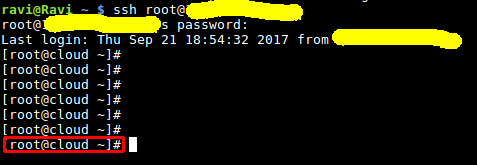
Port numbers are associated with TCP/IP network connections. A port number is a way to identify a specific process to which an Internet or other network message is to be forwarded when it arrives at a server. They allow different applications on the same computer to share network resources simultaneously. Home network routers and computer software work with these ports and sometimes support configuring port number settings. Port numbers relate to network addressing. In TCP/IP networking, both TCP and UDP utilize their own set of ports that work together with IP addresses. In both TCP and UDP, port numbers start at 0 and go up to 65535. Numbers in the lower ranges are dedicated to common Internet protocols (like port 80 for HTTP and port 443 for HTTPS). This article will be showing you how to open ports in your Linux Web Hosting Nepal servers firewall. This can be very useful, and also dangerous, so be sure you know what port you want to open up. Hackers can use these open ports to gain unauthorized access to your Linux server, so be careful! STEP1: Login SSH into your server as RootSTEP2: Get to the directory where the configuration file is for CSF
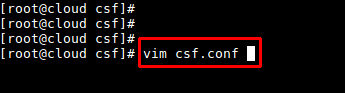
cd / etc /csf This is where CSF keeps all of its files, not just the configuration file.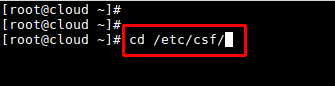 Open the configuration file so that we can edit it. Something like "Vim" or vi editor vim csf.conf or vi csf.conf
Find TCP_IN Line on the file csf.conf
Open the configuration file so that we can edit it. Something like "Vim" or vi editor vim csf.conf or vi csf.conf
Find TCP_IN Line on the file csf.conf
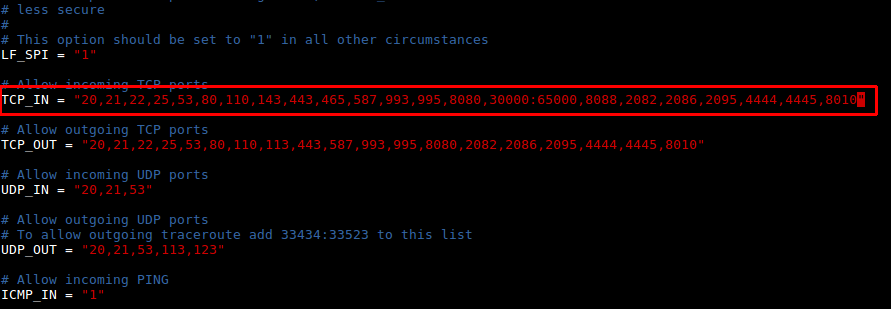
 Once you have the file open, you will see a "TCP_IN" and "TCP_OUT" section. It will look like this:
TCP_IN = "20,21,1122, 25, 26, 53, 80, 110, 143, 443, 465, 587, 993, 995, 2077, 2078, 2082, 2083, 2086, 2087, 2095, 2096, 8010"
Once you have the file open, you will see a "TCP_IN" and "TCP_OUT" section. It will look like this:
TCP_IN = "20,21,1122, 25, 26, 53, 80, 110, 143, 443, 465, 587, 993, 995, 2077, 2078, 2082, 2083, 2086, 2087, 2095, 2096, 8010"
 TCP_IN = "20,21,1122, 25, 26, 53, 80, 110, 143, 443, 465, 587, 993, 995, 2077, 2078, 2082, 2083, 2086, 2087, 2095, 2096, 8010"
 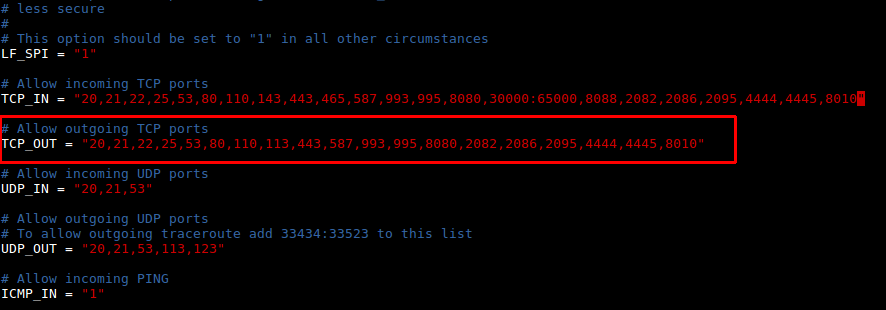 All those numbers there are ports that are currently "open". Yours may look different so don't panic! It all depends on your configuration.
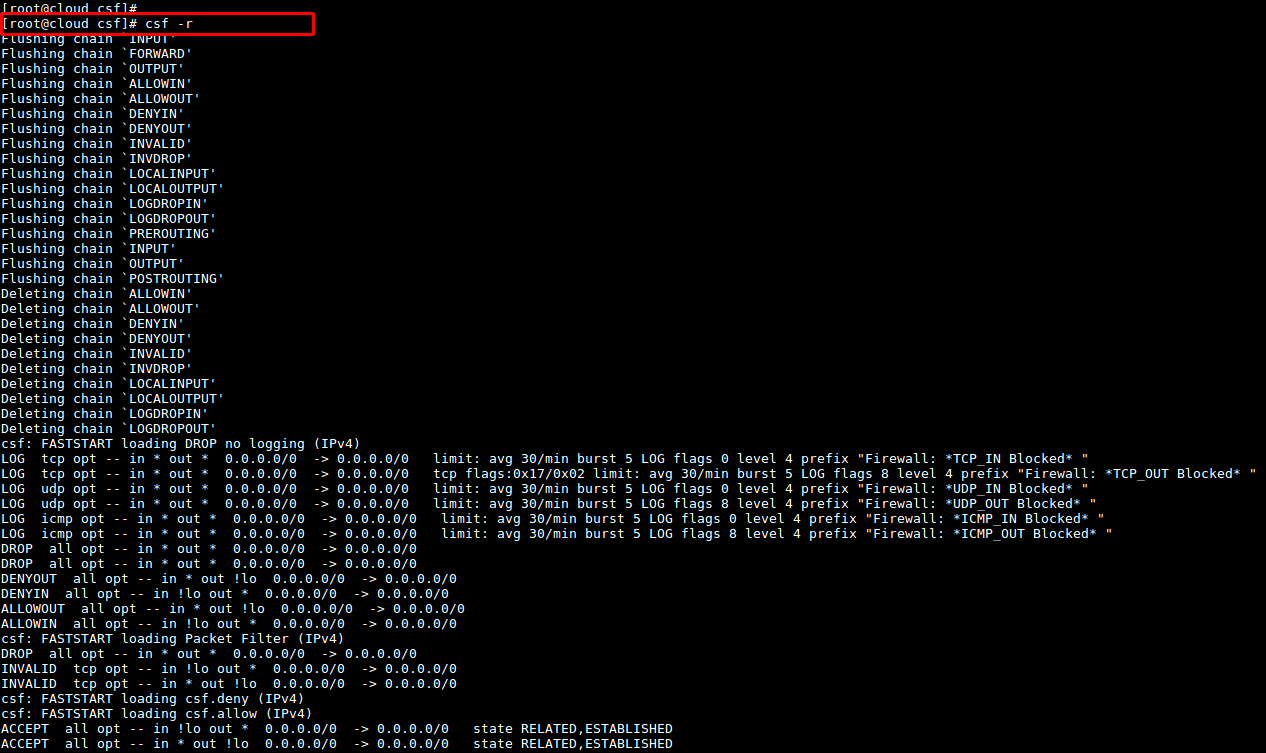
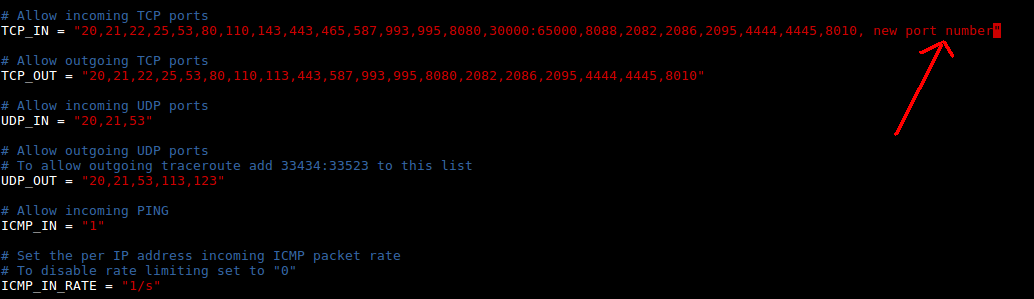 Save and get out of this file (:wq!) Restart the firewall so that your changes take effect! csf -r
  Stopping CSF csf -x
Related Open Port other Panel:
Refer the below links for Port Plesk Panel,
https://www.wiki.hostingsewa.in/firewall/how-to-block-and-allow-port-in-windows-server
Refer the below links for Port Cpanel Panel,
https://help.hostingsewa.in/hr-panel/security/how-to-enable-disable-firewall
Refer the below links for Port Hrpanel Panel,
https://help.hostingsewa.in/hr-panel/manager/csf/how-to-enable-port-number-in-whm-panel
Stopping CSF csf -x
Related Open Port other Panel:
Refer the below links for Port Plesk Panel,
https://www.wiki.hostingsewa.in/firewall/how-to-block-and-allow-port-in-windows-server
Refer the below links for Port Cpanel Panel,
https://help.hostingsewa.in/hr-panel/security/how-to-enable-disable-firewall
Refer the below links for Port Hrpanel Panel,
https://help.hostingsewa.in/hr-panel/manager/csf/how-to-enable-port-number-in-whm-panel
[ad_2]
Port numbers are associated with TCP/IP network connections. A port number is a way to identify a specific process to which an Internet or other network message is to be forwarded when it arrives at a server. They allow different applications on the same computer to share network resources simultaneously. Home network routers and computer software work with these ports and sometimes support configuring port number settings. Port numbers relate to network addressing. In TCP/IP networking, both TCP and UDP utilize their own set of ports that work together with IP addresses. In both TCP and UDP, port numbers start at 0 and go up to 65535. Numbers in the lower ranges are dedicated to common Internet protocols (like port 80 for HTTP and port 443 for HTTPS). This article will be showing you how to open ports in your Linux Web Hosting Nepal servers firewall. This can be very useful, and also dangerous, so be sure you know what port you want to open up. Hackers can use these open ports to gain unauthorized access to your Linux server, so be careful! STEP1: Login SSH into your server as Root
STEP2: Get to the directory where the configuration file is for CSF
cd / etc /csf This is where CSF keeps all of its files, not just the configuration file.
Open the configuration file so that we can edit it. Something like "Vim" or vi editor vim csf.conf or vi csf.conf
Find TCP_IN Line on the file csf.conf
Once you have the file open, you will see a "TCP_IN" and "TCP_OUT" section. It will look like this:
TCP_IN = "20,21,1122, 25, 26, 53, 80, 110, 143, 443, 465, 587, 993, 995, 2077, 2078, 2082, 2083, 2086, 2087, 2095, 2096, 8010"
TCP_IN = "20,21,1122, 25, 26, 53, 80, 110, 143, 443, 465, 587, 993, 995, 2077, 2078, 2082, 2083, 2086, 2087, 2095, 2096, 8010" All those numbers there are ports that are currently "open". Yours may look different so don't panic! It all depends on your configuration.Save and get out of this file (:wq!) Restart the firewall so that your changes take effect! csf -r Stopping CSF csf -x
Related Open Port other Panel:
Refer the below links for Port Plesk Panel,
https://www.wiki.hostingsewa.in/firewall/how-to-block-and-allow-port-in-windows-server
Refer the below links for Port Cpanel Panel,
https://help.hostingsewa.in/hr-panel/security/how-to-enable-disable-firewall
Refer the below links for Port Hrpanel Panel,
https://help.hostingsewa.in/hr-panel/manager/csf/how-to-enable-port-number-in-whm-panel
[ad_2]
Advertisement