
How to login using SSH Key in cPanel

[ad_1]
Here we will be going through a step by step process by which you will be able to generate the SSH Key in cpanel. But before that one should understand an SSH
SSH is a software which allows a secured file transfer and remote logins over the internet.
SSH key Explained
There is a good possibility that your SSH username and password can be hacked, and as a result it can be misused as well. An SSH key is used to authorize your SSH access, it is another type of password by which you can login to your SSH account. The SSH protocol uses public key cryptography for authenticating hosts and users
This authentication is the SSH key. SSH key is generated by the cPanel using keygen program. Step by Step process by which you will be able to generate the SSH Key.Step 1: Login your cpanel. The cPanel login details will be provided to you by your web hosting provider. After logging into the cPanel the dashboard will be visible to you. As shown in the below snapshot.Step 2: On the cPanel dashboard you will be able to see a security section. From there you have to select the ssh access.Step 3: Once you click on the SSH access click the manges SSH keys. 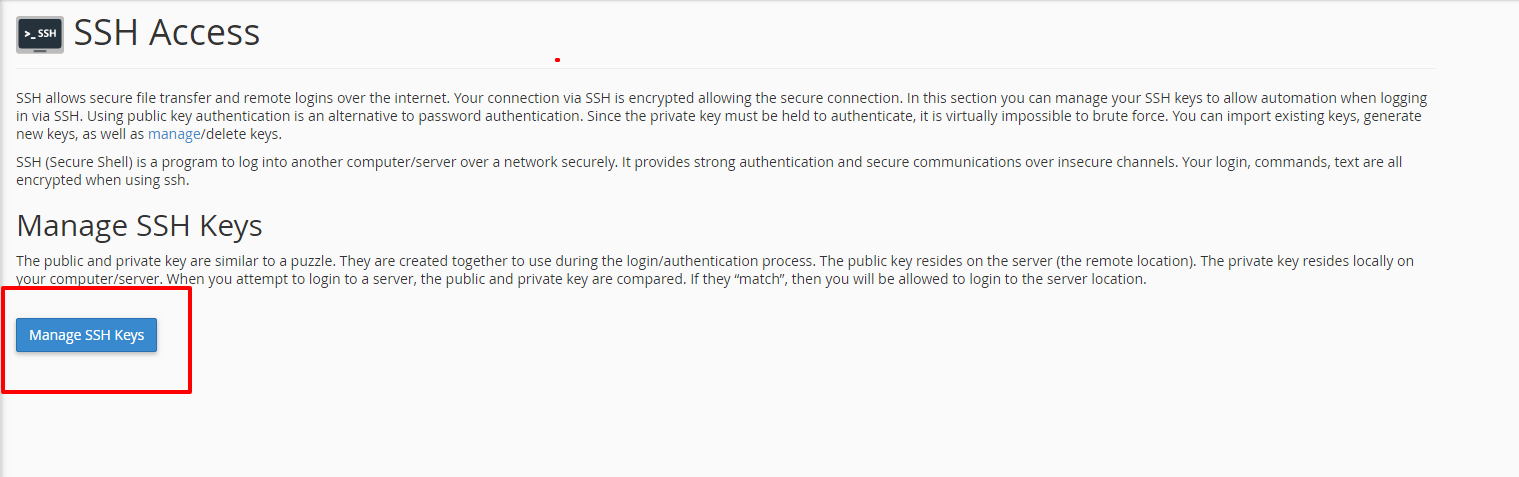 Step 4 : After clicking Manage SSH keys you will be able to see to options Generate a New key and Import key. You need to click on Generate a New Key for generating new key for ssh login.
 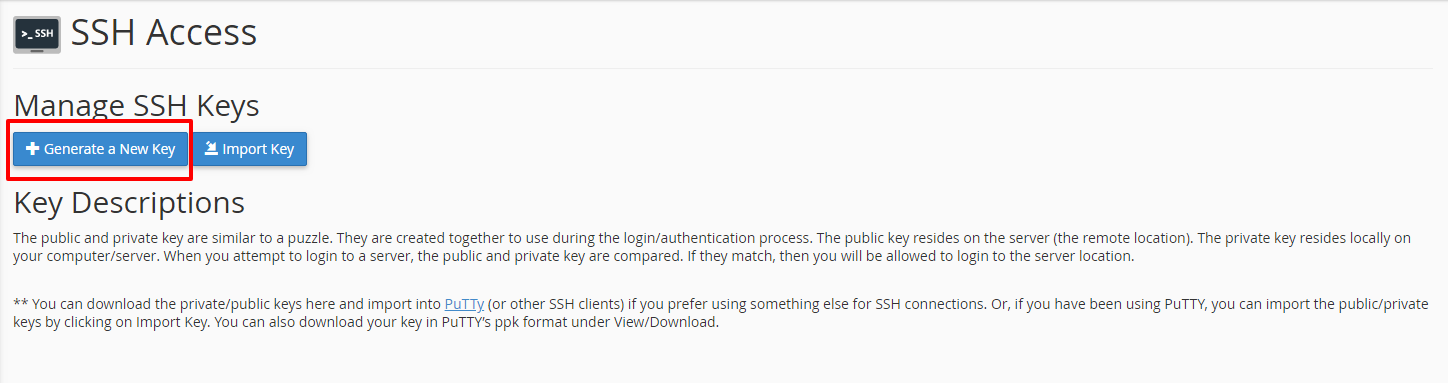 Step 4(a)(1)Once you click on the generate a new key you will be redirected to a screen as shown below.
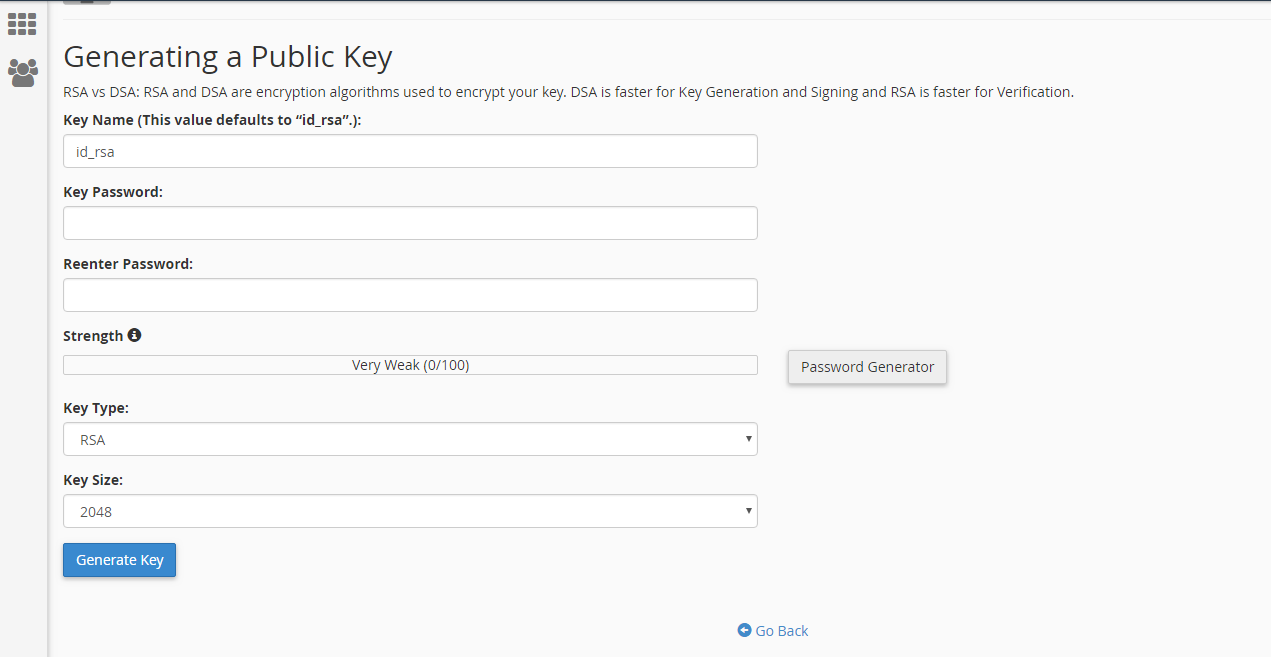 Step 4(a)(2)After putting in the necessary details like the key name, key password you need to click on generate key.
Once you have clicked on the generate key option your key generation will be completed as shown below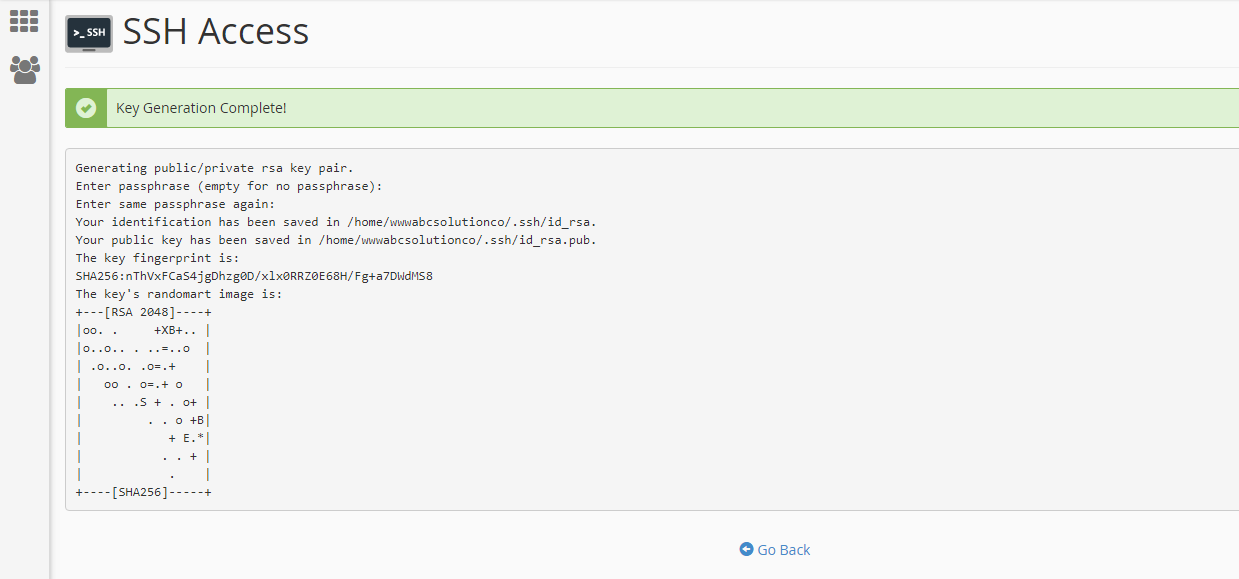 Step4(b)(1)
If you don't want to generate a new key you need to click on import key.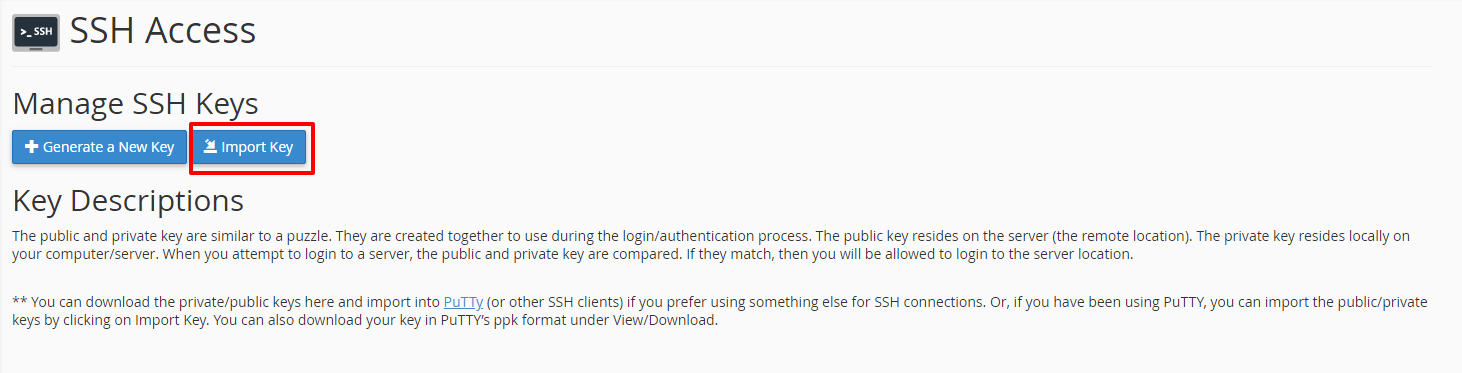 Step4(b)(2)After clicking the import key a page will be displayed as shown below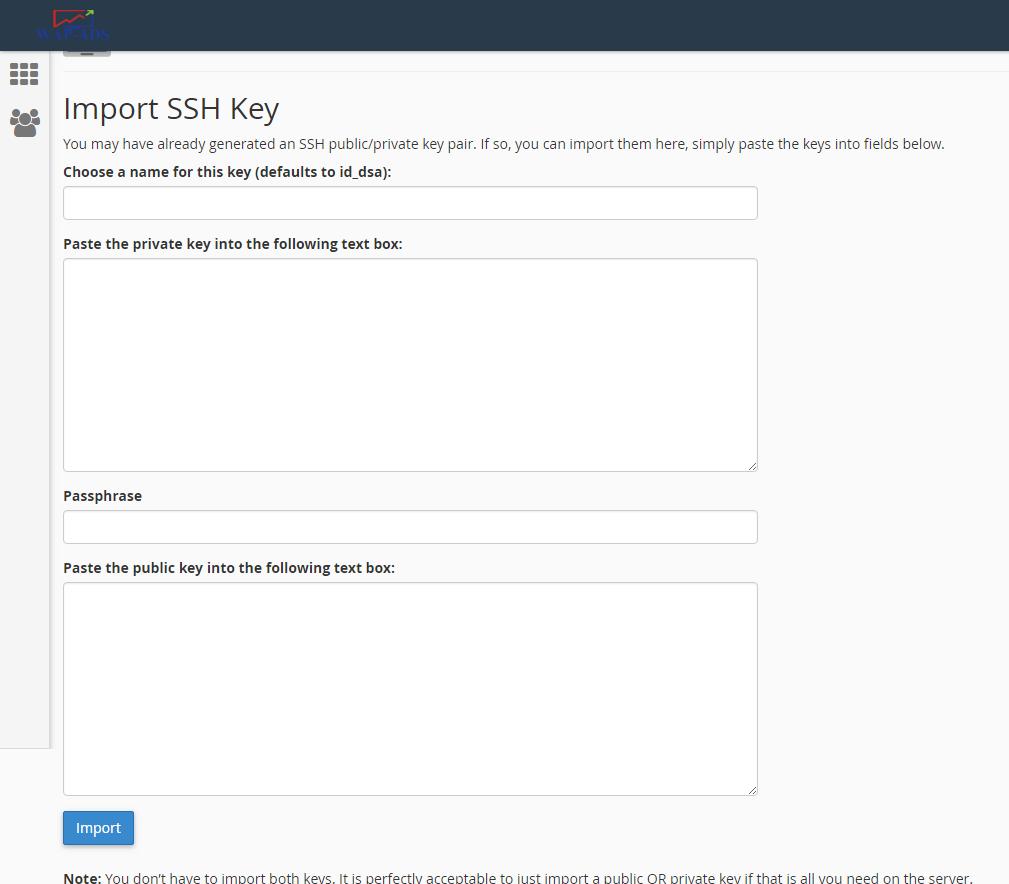
Step4(b)(3)Now you need to choose the name for this key. You can choose the key according to your wish. Now you need to paste the public key and the private key in the space provided.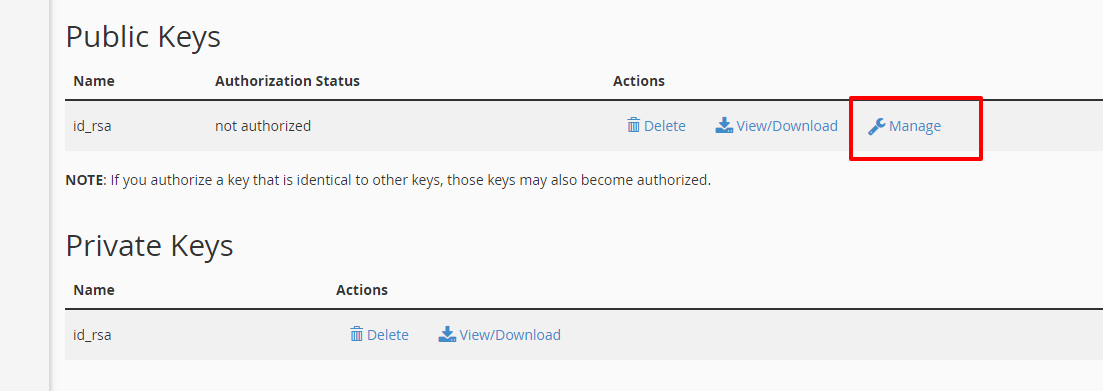 Once the key is generated. You need to go back and check if the public and private key is created or not. If it is created you need to click on the Managed under public keys.Step 5Once you click on the manage section a page will appear as shown below. You need to click on the Authorize tab.
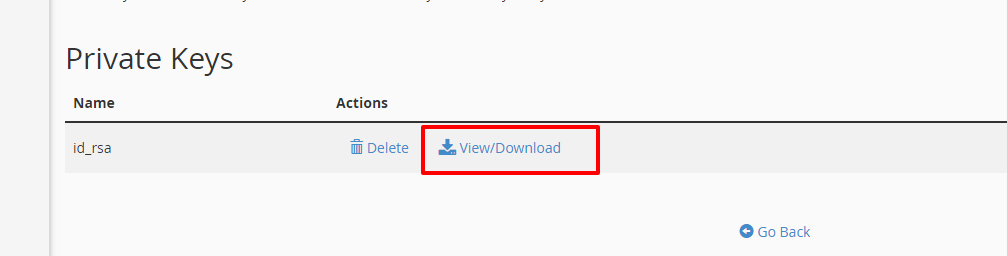
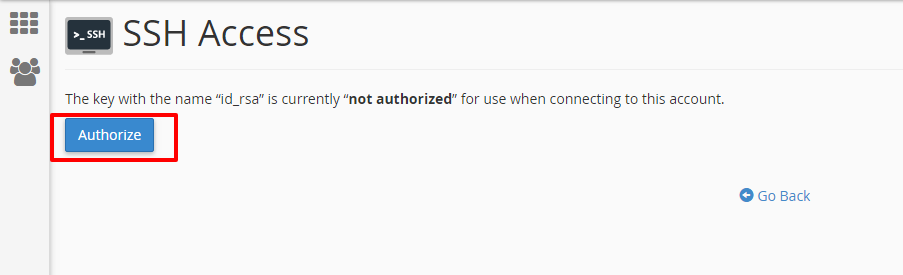 Step 6Now you need to go back and in the Private Keys section you need to click on View/Download as shown below
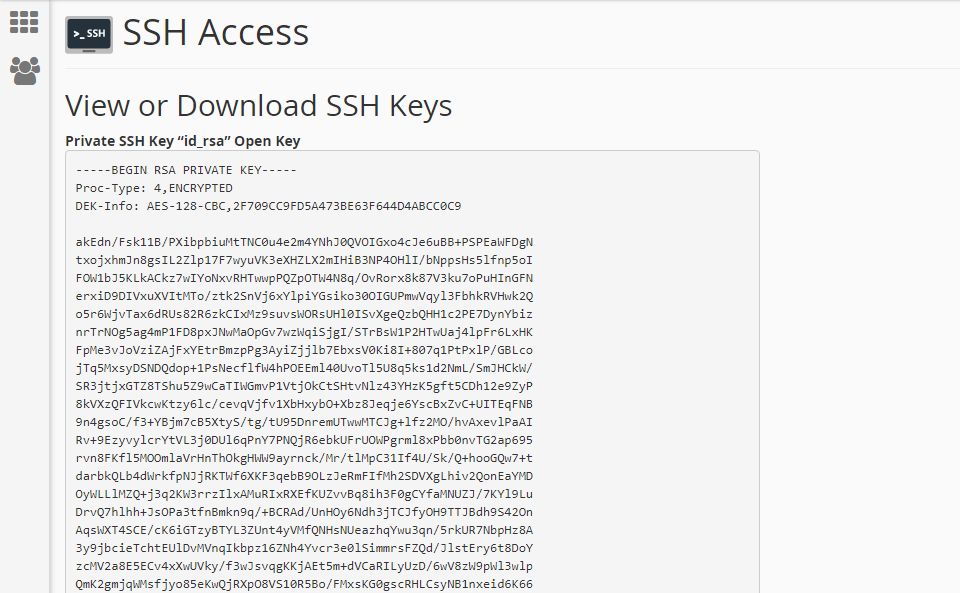
 Step 7Once you click on View/Download you will see the screen as shown below
 Step 8On the same page you will be able to see a section which says Convert the “key name” to PPK format as shown below
 Step 9
After putting in the password you need to click on convert.By following these steps you will be able to download the Private Key for SSH login.
[ad_2]
Here we will be going through a step by step process by which you will be able to generate the SSH Key in cpanel. But before that one should understand an SSH
SSH is a software which allows a secured file transfer and remote logins over the internet.
SSH key Explained
There is a good possibility that your SSH username and password can be hacked, and as a result it can be misused as well. An SSH key is used to authorize your SSH access, it is another type of password by which you can login to your SSH account. The SSH protocol uses public key cryptography for authenticating hosts and users
This authentication is the SSH key. SSH key is generated by the cPanel using keygen program. Step by Step process by which you will be able to generate the SSH Key.Step 1: Login your cpanel. The cPanel login details will be provided to you by your web hosting provider. After logging into the cPanel the dashboard will be visible to you. As shown in the below snapshot.Step 2: On the cPanel dashboard you will be able to see a security section. From there you have to select the ssh access.
Step 3: Once you click on the SSH access click the manges SSH keys. Step 4 : After clicking Manage SSH keys you will be able to see to options Generate a New key and Import key. You need to click on Generate a New Key for generating new key for ssh login. Step 4(a)(1)Once you click on the generate a new key you will be redirected to a screen as shown below.Step 4(a)(2)After putting in the necessary details like the key name, key password you need to click on generate key. Once you have clicked on the generate key option your key generation will be completed as shown below
Step4(b)(1)If you don't want to generate a new key you need to click on import key.
Step4(b)(2)After clicking the import key a page will be displayed as shown belowStep4(b)(3)Now you need to choose the name for this key. You can choose the key according to your wish. Now you need to paste the public key and the private key in the space provided.
Once the key is generated. You need to go back and check if the public and private key is created or not. If it is created you need to click on the Managed under public keys.Step 5Once you click on the manage section a page will appear as shown below. You need to click on the Authorize tab.Step 6Now you need to go back and in the Private Keys section you need to click on View/Download as shown belowStep 7Once you click on View/Download you will see the screen as shown belowStep 8On the same page you will be able to see a section which says Convert the “key name” to PPK format as shown belowStep 9 After putting in the password you need to click on convert.By following these steps you will be able to download the Private Key for SSH login.
[ad_2]
Advertisement