
How to add Email Signature in Windows Phone?
[ad_1]
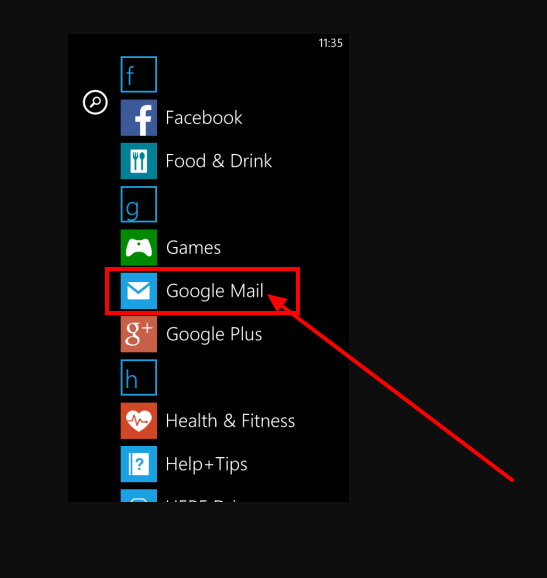
It is a known fact that email is one of the important modes of communication in all business sectors. And today a lot of business are depended on email service. Moreover, if you have an email service then you can easily get connected with the people around you and also with the customers across the globe. With the help of email, you can also do marketing of your business products and services. So today if you are looking for information on how to add Email Signature in Windows Phone then here is the complete information on it. Follow the below steps to add Email Signature in Windows Phone: 1. First, you need to open an email account and that can be done either from the start screen or from the Apps list.
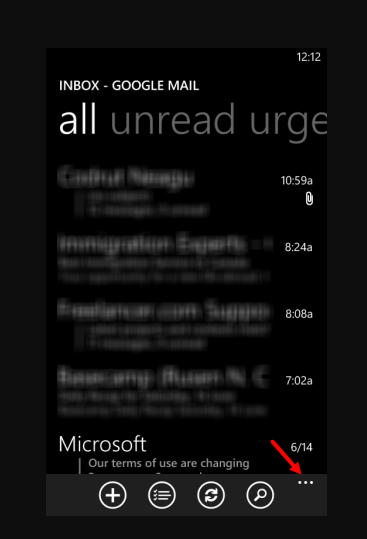
2. Next, in the inbox of your email account, you need to tap on more option (the three dots on the bottom right of the screen).
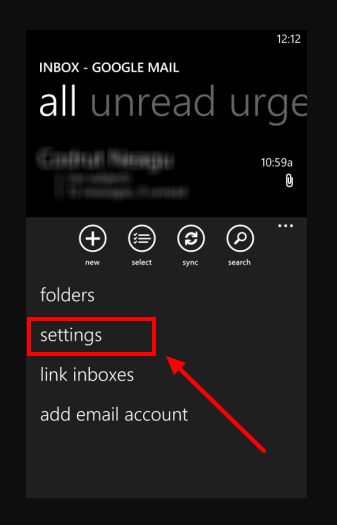
 3. Now a menu will be shown on the bottom of your screen with several options. So in there, you need to click on setting.
 4. Next, in the setting tab, you can customize plenty of things so in there you will see the signature for your email account.
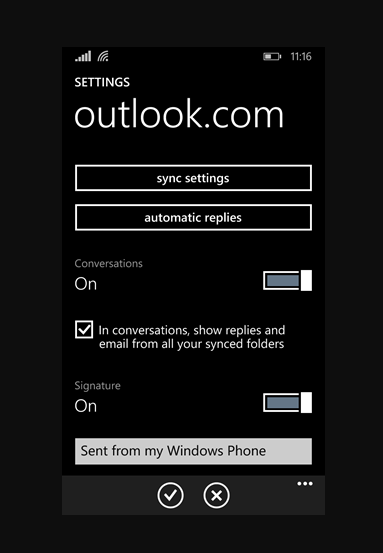 5. The first thing you'll find in the Signature section is a switch for turning this feature On and Off. If you want to stop using an email signature, set this switch to Off. If you want to use a signature, set this switch to On.
6. Once after turning the signature option on a text field is shown beneath its switch. It displays the current signature. If you never changed it, it should say "Sent from my Windows Phone".
5. The first thing you'll find in the Signature section is a switch for turning this feature On and Off. If you want to stop using an email signature, set this switch to Off. If you want to use a signature, set this switch to On.
6. Once after turning the signature option on a text field is shown beneath its switch. It displays the current signature. If you never changed it, it should say "Sent from my Windows Phone".
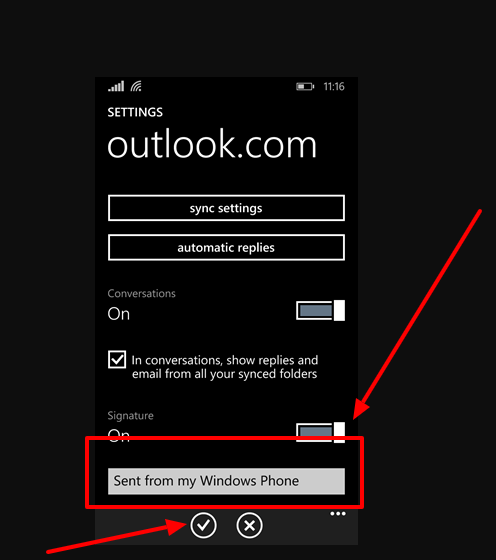 7. Now to edit the signature you need to click on that filed and need to enter the text that you want to use. Next click on done to save your changes.
8. So now all the emails you will send from this account will have the new signature attached at the end.
7. Now to edit the signature you need to click on that filed and need to enter the text that you want to use. Next click on done to save your changes.
8. So now all the emails you will send from this account will have the new signature attached at the end.
[ad_2]
It is a known fact that email is one of the important modes of communication in all business sectors. And today a lot of business are depended on email service. Moreover, if you have an email service then you can easily get connected with the people around you and also with the customers across the globe. With the help of email, you can also do marketing of your business products and services. So today if you are looking for information on how to add Email Signature in Windows Phone then here is the complete information on it. Follow the below steps to add Email Signature in Windows Phone: 1. First, you need to open an email account and that can be done either from the start screen or from the Apps list.
2. Next, in the inbox of your email account, you need to tap on more option (the three dots on the bottom right of the screen).
3. Now a menu will be shown on the bottom of your screen with several options. So in there, you need to click on setting.
4. Next, in the setting tab, you can customize plenty of things so in there you will see the signature for your email account.
5. The first thing you'll find in the Signature section is a switch for turning this feature On and Off. If you want to stop using an email signature, set this switch to Off. If you want to use a signature, set this switch to On.
6. Once after turning the signature option on a text field is shown beneath its switch. It displays the current signature. If you never changed it, it should say "Sent from my Windows Phone".
7. Now to edit the signature you need to click on that filed and need to enter the text that you want to use. Next click on done to save your changes.
8. So now all the emails you will send from this account will have the new signature attached at the end.
[ad_2]
Advertisement