
How to Access your website files through FTP?
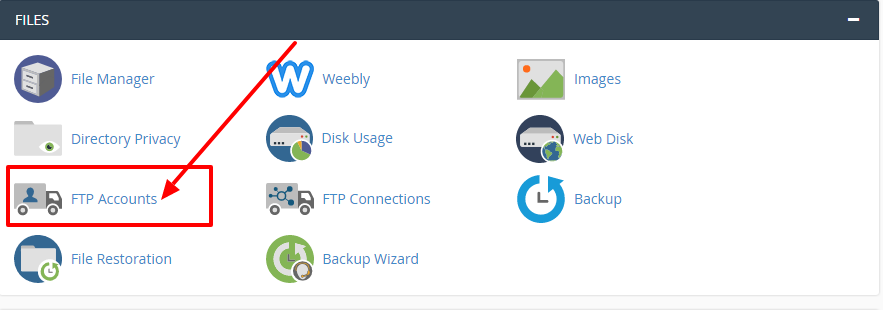
[ad_1]
How to Access your website files through FTP?
A cPanel will be the easiest tool for customers to manage an online hosting account. Our web hosting plans come with a pre-installed cPanel. It makes it easier for our customers to regulate their website through one hosting cPanel account. And we offer the best hosting with Cpanel in Nepal.
What do you mean by FTP and the uses of the FTP?
File Transfer Protocol (FTP) is an internet protocol for sending files between computers on the net over TCP/IP connections. FTP is a client-server protocol that depends on 2 communications channels between client and server. The command channel for managing the conversation and a data channel for sending file content. Customers initiate conversations with servers by requesting to download a file. With the use of FTP, a customer will be able to download, delete, upload, rename, move and copy files on a server.
What is the use of an FTP account in a cPanel?
An FTP account is used for uploading and managing files on your website. An FTP account is being created automatically in a cPanel. When you buy hosting, create a cPanel, create an addon domain or subdomain or enable anonymous FTP.
Step-3: On the Add FTP Account page, fill in the details like:
Log in: You need to enter your username for your FTP account
Domain: You need to select the domain name for which you are creating an FTP account from the Dropdown menu
Password and password(again): you need to enter a password for your FTP account. You can also generate your password using the password generator
Directory: Enter the home directory for the FTP account
Quota: Select the quota if you require, you can either enter the disk space quota or select Unlimited
After entering the details >> click on Create FTP Account
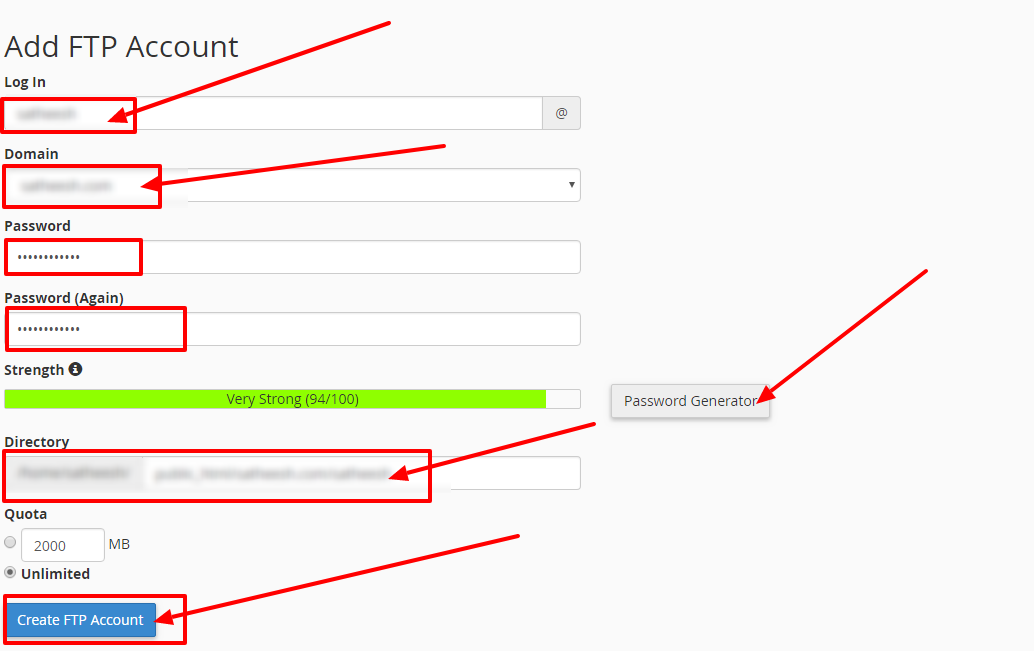 Following the above steps, you can create FTP accounts for your Domain. You view the created FTP account in the list of FTP accounts as shown below:
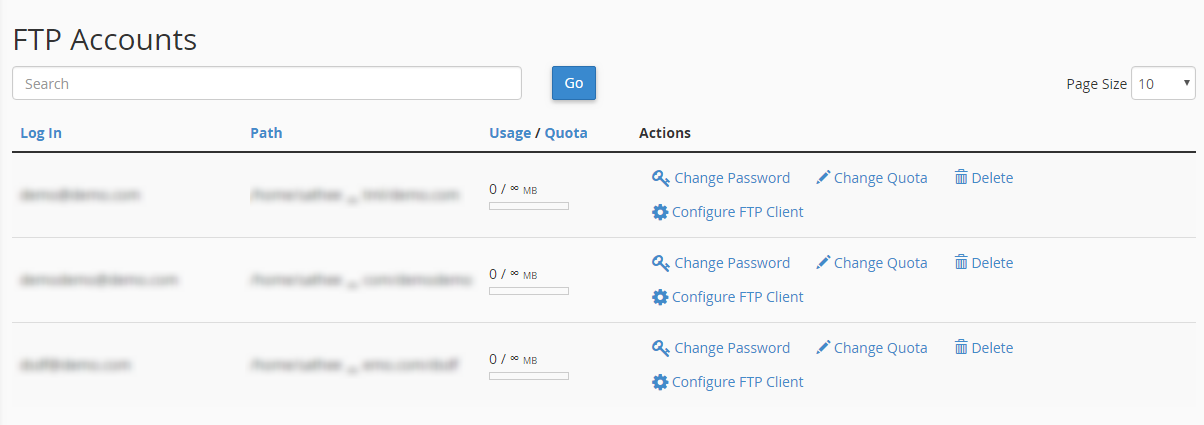 You will also be able to change the quote, change the password, configure FTP client and delete an existing account as mentioned in the below screenshot.
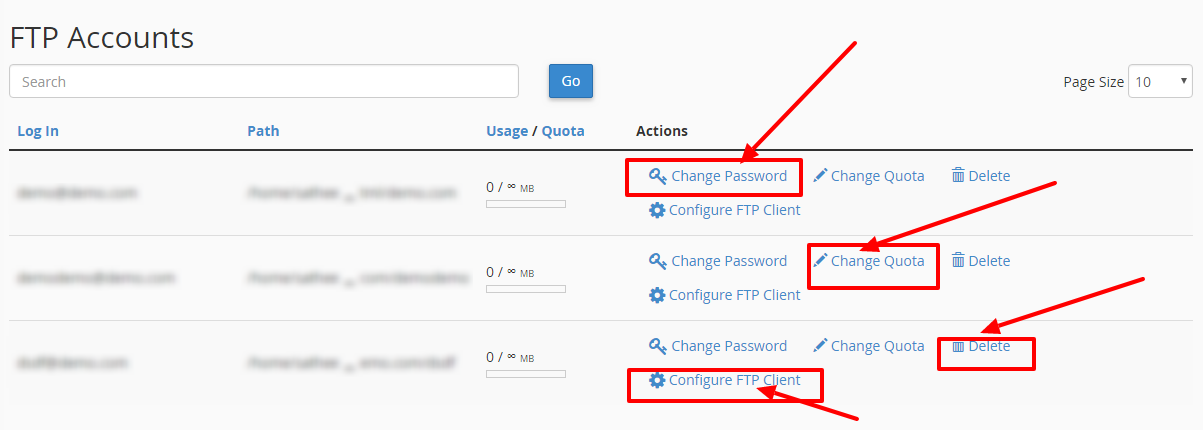
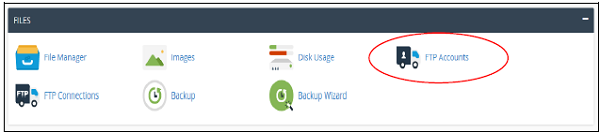 Once you see that the FTP account feature is opened you will be able to see that screen as it is shown below
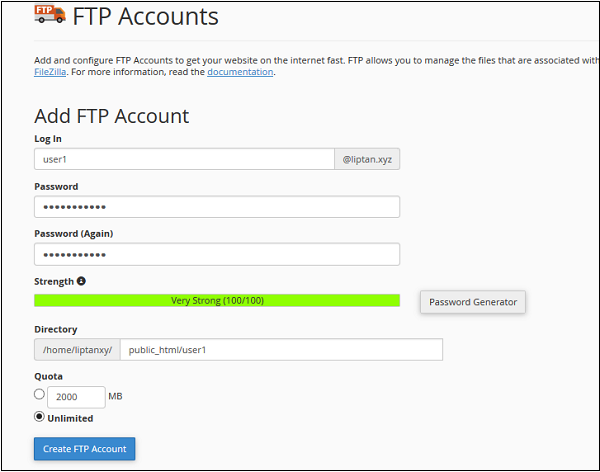 2. Now you have to enter the name of the new user, that will be the person username, you need to provide a strong password for the name.
3. Now you can enter the directory of the new user, you can also leave that pre-filled directory name according to the user.
4. Now you need to provide the FTP quota, you can either provide unlimited quota or use some other value in megabytes.
5. Now you can click on the FTP account and your FTP account will be created.
Configure the FTP Client: For the configuration of FTP client, you can download any of the pre-built configuration file by clicking on the Configure the FTP account.
2. Now you have to enter the name of the new user, that will be the person username, you need to provide a strong password for the name.
3. Now you can enter the directory of the new user, you can also leave that pre-filled directory name according to the user.
4. Now you need to provide the FTP quota, you can either provide unlimited quota or use some other value in megabytes.
5. Now you can click on the FTP account and your FTP account will be created.
Configure the FTP Client: For the configuration of FTP client, you can download any of the pre-built configuration file by clicking on the Configure the FTP account.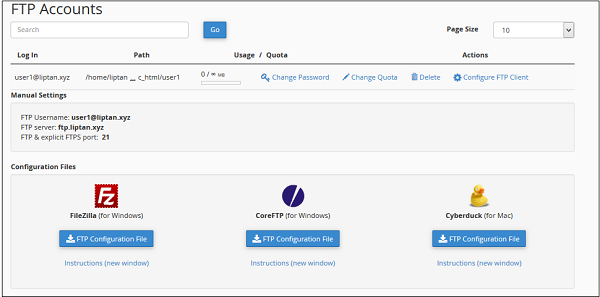 In Linux cPanel User Manager you can easily make any changes or add any user or delete your account in your cPanel. User Manager is an interface where you will be able to add a new user and also associate them with the FTP as well as an email account.
Note: Special FTP Accounts in Special FTP Accounts section lists your Cpanel account’s administrative FTP accounts and it includes Cpanel account’s primary FTP account and a log maintenance account. You cannot delete these FTP accounts in Special FTP Accounts of the interface.
You can connect FTP account using Filezilla, it is an FTP program that allows you to transfer files from your local computer to a remote server.
Steps to connect to FTP using FileZilla:
Step 1: Open the Filezilla
Step 2: Enter the details:
Host: for this, you should enter your domain or server IP address
User: for this enter Your FTP username
Password: Your FTP password
Port: 21
Step 3: click on “Quickconnect”
Once connected, the left-hand window will show your local system and a right-hand window will show the remote system. In order to transfer a file from the local system (left window) to remote server (right window), please right-click on it and choose the option “Upload”. On a successful transfer, the file will get displayed on the right-hand side window. [Similarly, the folder can be transferred]
Same steps need to be repeated for downloading a file from the remote server (right window) to the local system (left window).
If you are facing any issues or If you need any assistance, feel free to contact our technical team members as they are available 24/7 via phone call, email, ticket system or call out no 9863075120
[ad_2]
In Linux cPanel User Manager you can easily make any changes or add any user or delete your account in your cPanel. User Manager is an interface where you will be able to add a new user and also associate them with the FTP as well as an email account.
Note: Special FTP Accounts in Special FTP Accounts section lists your Cpanel account’s administrative FTP accounts and it includes Cpanel account’s primary FTP account and a log maintenance account. You cannot delete these FTP accounts in Special FTP Accounts of the interface.
You can connect FTP account using Filezilla, it is an FTP program that allows you to transfer files from your local computer to a remote server.
Steps to connect to FTP using FileZilla:
Step 1: Open the Filezilla
Step 2: Enter the details:
Host: for this, you should enter your domain or server IP address
User: for this enter Your FTP username
Password: Your FTP password
Port: 21
Step 3: click on “Quickconnect”
Once connected, the left-hand window will show your local system and a right-hand window will show the remote system. In order to transfer a file from the local system (left window) to remote server (right window), please right-click on it and choose the option “Upload”. On a successful transfer, the file will get displayed on the right-hand side window. [Similarly, the folder can be transferred]
Same steps need to be repeated for downloading a file from the remote server (right window) to the local system (left window).
If you are facing any issues or If you need any assistance, feel free to contact our technical team members as they are available 24/7 via phone call, email, ticket system or call out no 9863075120
[ad_2]
Steps to access your web site's files through an FTP protocol:
Step-1: Login to Cpanel. Step-2: Select the FTP accounts from the file section.
Step-3: On the Add FTP Account page, fill in the details like:
Log in: You need to enter your username for your FTP account
Domain: You need to select the domain name for which you are creating an FTP account from the Dropdown menu
Password and password(again): you need to enter a password for your FTP account. You can also generate your password using the password generator
Directory: Enter the home directory for the FTP account
Quota: Select the quota if you require, you can either enter the disk space quota or select Unlimited
After entering the details >> click on Create FTP Account
Following the above steps, you can create FTP accounts for your Domain. You view the created FTP account in the list of FTP accounts as shown below:
You will also be able to change the quote, change the password, configure FTP client and delete an existing account as mentioned in the below screenshot.
How to use FTP in Linux shared platform
An FTP allows the user to manage the files with third-party applications like FileZilla, CoreFTP, etc. When the number of files or the size of the file is large FTP file manager is the best option. An FTP account will configure the users who are willing to upload, download or modify the files through an FTP. Each FTP user has its own username as well the home directory, only that user director will be having an access to. Create of an FTP account, some of the steps are as follows: 1. For the opening of the FTP accounts feature you need to click on the FTP accounts which is under the file section.Once you see that the FTP account feature is opened you will be able to see that screen as it is shown below
2. Now you have to enter the name of the new user, that will be the person username, you need to provide a strong password for the name.
3. Now you can enter the directory of the new user, you can also leave that pre-filled directory name according to the user.
4. Now you need to provide the FTP quota, you can either provide unlimited quota or use some other value in megabytes.
5. Now you can click on the FTP account and your FTP account will be created.
Configure the FTP Client: For the configuration of FTP client, you can download any of the pre-built configuration file by clicking on the Configure the FTP account.
In Linux cPanel User Manager you can easily make any changes or add any user or delete your account in your cPanel. User Manager is an interface where you will be able to add a new user and also associate them with the FTP as well as an email account.
Note: Special FTP Accounts in Special FTP Accounts section lists your Cpanel account’s administrative FTP accounts and it includes Cpanel account’s primary FTP account and a log maintenance account. You cannot delete these FTP accounts in Special FTP Accounts of the interface.
You can connect FTP account using Filezilla, it is an FTP program that allows you to transfer files from your local computer to a remote server.
Steps to connect to FTP using FileZilla:
Step 1: Open the Filezilla
Step 2: Enter the details:
Host: for this, you should enter your domain or server IP address
User: for this enter Your FTP username
Password: Your FTP password
Port: 21
Step 3: click on “Quickconnect”
Once connected, the left-hand window will show your local system and a right-hand window will show the remote system. In order to transfer a file from the local system (left window) to remote server (right window), please right-click on it and choose the option “Upload”. On a successful transfer, the file will get displayed on the right-hand side window. [Similarly, the folder can be transferred]
Same steps need to be repeated for downloading a file from the remote server (right window) to the local system (left window).
If you are facing any issues or If you need any assistance, feel free to contact our technical team members as they are available 24/7 via phone call, email, ticket system or call out no 9863075120
[ad_2]Advertisement